The Controllers page (found under the Controllers tab) lists all controllers available under your user profile. The list provides insightful information about each controller.
Controller List
From this page, you'll be able to view a controller's:
- Account, Site, Controller and Serial Number
- Model, Firmware Version, and Modem type
- Controller Status
- Last daily ET and the date it was recorded
- Rain Pause Remaining Days
- Current Scheduled Event Pause status and schedule
- Total Alerts by category
Additionally, you'll be able to select one or more controllers and can also complete the below:
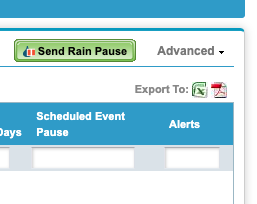
- Create a Rain Pause: Setting a Rain Pause from WeatherTRAK Central
- Select Send Rain Pause and the following window will popup

- Update Controller Mode
- Global Scheduled Tasks (Event pause and Master valve override)
- Create Station Groups
- Manage Station Groups
Selecting the:
- Site name will take you to the Manage Site page
- Controller name or Serial Number will take you to the Manage Controller page
- Alert category will take you to the Alert List page
Overview

Account Name
- This is the name assigned to your account
- It is assigned by Corporate Demo
- WeatherTRAK Central can support multiple accounts for one specific log-in and password
Site Name
- The site's name is where the controller(s) is located
Controller Name
- The controller name is up to you and can represent a street address or location
- You can always change the name from the Manage Controller page
Controller Serial Number
- Every WeatherTRAK controller is assigned a serial number embedded in its software and labeled on a sitcker with a barcode
- This serial number is needed when calling HydroPoint Customer Support if a controller-related question arises
Model / Version / Modem
- The model of the controller, the version number of the firmware, and the modem type are listed
- This can be referenced to ensure your controllers are up-to-date
Controller Status
The controller status represents the following communication states:
-
Online -The controller and the WeatherTRAK servers are in communication with one another.
-
Offline - When a controller is offline, communication between the controller and WeatherTRAK servers has been lost. Offline occurrences can be temporary, such as when a power outage happens.
-
Off - Will cause the WeatherTRAK controller to stop current and future irrigation indefinitely. Depletion for stations in auto will be accumulated and the controller will still run the daily valve check.
-
Winterized - The controller stops all irrigation, but continues to receive daily ET. Depletion remains constant. Run Time Valve Test, Manual irrigation, and Master Valve Override are disabled. The controller will still trigger Leak and Extended leak alerts if flow is detected. The MV will close if the controller has a normally open master valve.
-
Manual - The controller has been temporarily set to manual water.
-
Shutdown – Will cause the WeatherTRAK controller to stop current and future irrigation indefinitely. Depletion for stations in auto will be accumulated, the normally open master valve will be energized and the controller will still run the daily valve check.
-
Paused – The controller has been paused because of user rain pause, climate center rain pause, rain switch(rain senor) or a scheduled event.
-
Lock/Unlock - For OptiFlow enabled controller models. You can perform functions from the controller that aid in-field troubleshooting when set to unlock. Functions include manual irrigation, mode changes, alert clearing, valve tests, manual diagnostics, communications menu, restarting the controller.
- Note: Programming changes or rain pauses cannot be made while in unlock mode
- Note: Programming changes or rain pauses cannot be made while in unlock mode
Last daily ET (Date)
This column displays ET in inches/day and the date it was received
Rain Pause Remaining Days
This column displays the remaining days of a rain pause
Scheduled Event Pause
This column displays the remaining days of a scheduled event pause
Alerts
This column identifies alert categories (in order of severity) and the number of alerts. Selecting this Alert category will navigate to the Active Alerts page for more details.
Filtering Controller Information
The information displayed on the Controller List page can be filtered so you can view controller information in whatever detail is required.
Selecting the filter radio button (Yes) will expose blank column headers at the top of each column subheading.
Typing in a specific controller serial number, for example, will sort the column accordingly.

Exporting
At any time, the list, or filtered list, can be exported to an Excel or PDF file format for printing, emailing, or storing for future reference as needed. Select the desired file format icon to download the report.