



Command Panel Replacement
- Power down the controller.
-
Unplug the old command panel
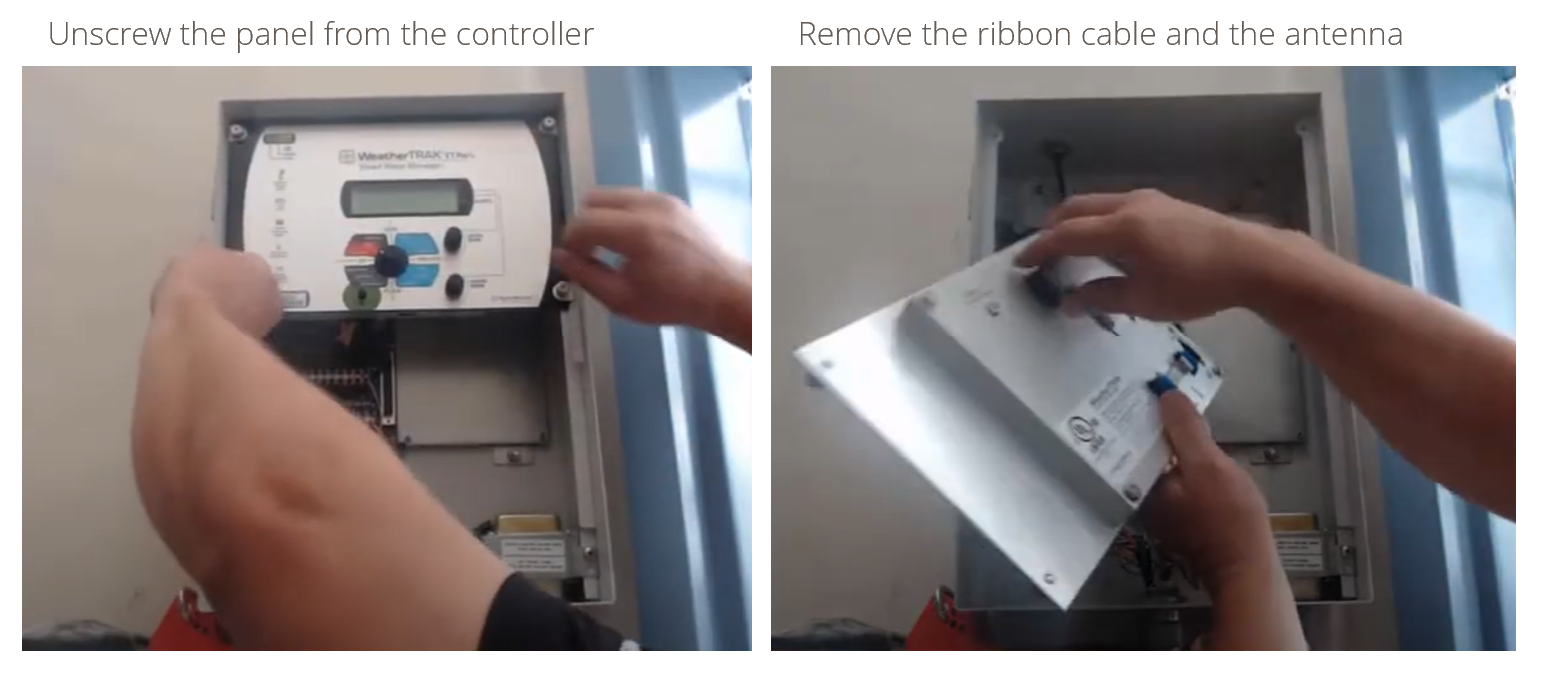
- Plug in new command panel.
- Ensure the ribbon cable is connected on both ends
- Ensure the Cloud / Optiflow key is installed
- Resecure panel
- Power up the controller and validate screen is visible
- if the contrast needs to be adjusted, press Setup > press Up or Down Arrow to set contrast
- Validate the controller goes online: Comm: 13
- Call Support to help transfer old data and perform replacement activation.